// Help & support
AxeBlock EDIT.
AxeBlock EDIT is an iPhone and iPad app that controls and edits your Fractal rig in real time over MIDI — presets, scenes, every block, and the routing grid. This page covers how to install it, how to connect, how to use each screen, what to do when something goes wrong, and how to reach us. Which Fractal units work today is in What works today.
Your presets are safe. AxeBlock EDIT works in the edit buffer — the same temporary space the unit uses while you turn knobs on the front panel. Nothing writes to a stored preset until you hit Save. Not sure? Power-cycle the unit and everything unsaved is discarded.
// Install — iPhone and iPad
AxeBlock EDIT is coming soon to the App Store. Once it’s live, install it from the App Store and launch it.
// Install — Android
The Android build is still in development — there’s nothing to install yet, and no Play Store listing. Want to know when it ships? Pick Android on the AxeBlock EDIT page and I’ll email you once, when it’s real. What the Android app does so far, and which units it talks to, is on the Android help page.
// Connect your rig
No unit yet? Tap Try Demo on the opening screen to explore the app without hardware. With a unit connected, an empty screen means the app isn’t seeing your hardware yet — check the cable or WIDI pairing. AxeBlock EDIT works with the Axe-Fx III, the VP4 and the full Axe-Fx II family, with FM9, FM3 and AM4 editing not yet confirmed on real units:
Using a WIDI Master or a Yamaha MD-BT01? The wireless help page has the plug-in order, what the lights mean, and what to try when it says offline.
- Axe-Fx III — connect over USB (USB-B to USB-C), or over Bluetooth with a WIDI Master. It’s class-compliant, so it shows up with no driver. Keep AxeBlock EDIT running: the III only exposes its USB MIDI port while an app holds it.
- Axe-Fx II, Axe-Fx II XL, and Axe-Fx II XL+ (including the original Mark I and Mark II) — connect over Bluetooth (WIDI) or 5-pin MIDI through an interface. Its USB isn’t iPhone- or iPad-compatible; on a Mac, USB works with Fractal’s driver. Heads-up: loading presets over Bluetooth is slower than USB — it’s working, not frozen.
- VP4 — connect over USB. Verified on a real VP4 (firmware 4.04).
- FM9 — connect over USB; Fractal’s manual lists MIDI over USB, but it may not show up on an iPad, so keep a WIDI Master handy as the fallback. Confirmed on a real FM9 by a beta tester. AM4 — connect over USB. Editing is not yet confirmed on a real AM4.
- FM3 — Bluetooth (WIDI Master) or 5-pin DIN MIDI only. The FM3’s USB doesn’t carry MIDI. Confirmed on a real FM3 by a beta tester over Bluetooth.
- Axe-Fx Standard and Ultra — 5-pin MIDI only; they have no USB. Connect MIDI IN and OUT through a MIDI interface, or a WIDI Master in the MIDI jacks.
The connection pill at the top-right shows the link — USB or BLUETOOTH — with a green dot when the unit is talking, amber while it’s still handshaking, and red when no port is selected. Tap the pill to pick a port.
Tested on real hardware: Axe-Fx III over USB and Bluetooth (WIDI); Axe-Fx II XL over Bluetooth; VP4 over USB. FM9 over USB and Bluetooth, and FM3 over Bluetooth, come from owner captures. Everything else on this page needs your hardware.
| Unit | USB | Bluetooth (WIDI) |
|---|---|---|
| Axe-Fx III | ✅ | ✅ |
| Axe-Fx II / II XL | — | ✅ |
| FM9 | ✅† | ✅ |
| FM3 | — | ✅ |
| AM4 | expected* | untested |
| VP4 | ✅ | untested |
† FM9 USB MIDI verified in the field — two owner captures over USB via our identify tool (fw 12.00, 2026-07). * expected — modern class-compliant USB, but checkmarks only go on hardware we’ve verified ourselves. The FM3’s USB carries no MIDI on any platform (its editor uses a proprietary USB protocol) — connect over Bluetooth (WIDI on its MIDI DIN ports) or 5-pin MIDI through an interface.
Axe-Fx II USB isn’t iPhone- or iPad-compatible — use Bluetooth (WIDI) or 5-pin MIDI. On a Mac, its USB works with Fractal’s driver.
// We want every unit
The Axe-Fx III and VP4 are verified on real units, and the Axe-Fx II XL is confirmed. Beta testers have confirmed the FM9 and FM3 on their own units. AM4 editing is built, but not yet confirmed on hardware — and every FM9, FM3 and AM4 report still helps. If you own one, connect it, run through the checklist below, and report back:
- FM9
- FM3 — its USB can't carry MIDI, so the identify tool needs its 5-pin MIDI ports run through a DIN interface (for probing only, we recommend the Roland UM-ONE mk2 — the same interface will connect the FM3 to our upcoming Mac and Windows desktop apps)
- AM4
On Windows, USB units (FM9, AM4, VP4) need the Fractal driver from fractalaudio.com/support. The FM3 (via interface) doesn’t — it’s DIN-only, no driver required.
Even an “it connected and presets work” report is valuable. Use the bug report form at the bottom of this page.
If your unit won’t connect, we’re probably just missing one byte from it — that’s a two-minute fix. Here’s how to grab it →
// Going wireless — the WIDI adapter
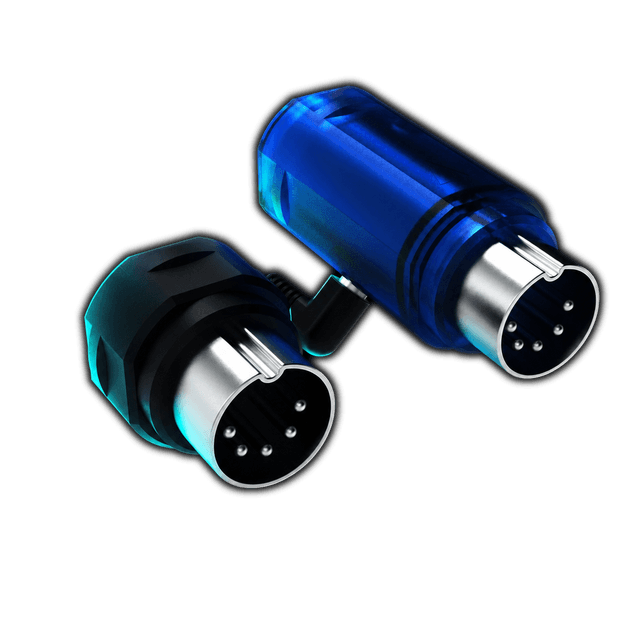
A WIDI adapter (by CME) is a small Bluetooth-MIDI dongle that plugs into a Fractal unit’s 5-pin DIN MIDI ports and connects it to your iPhone or iPad over Bluetooth. Hook it to MIDI IN and OUT, pair it in iOS Bluetooth, and you’re on the air — no cables. It draws power from the MIDI port itself, so there are no batteries to charge or replace.
The exact adapter we’ve tested with — WIDI Master →
// Why Bluetooth often beats USB on older units
The Axe-Fx III is USB class-compliant — iOS recognizes it instantly, no driver needed. Older hardware (Axe-Fx II, AX8, and others — the Standard/Ultra have no USB at all) uses a proprietary USB stack that requires a desktop driver. That driver doesn’t exist for iOS, so the USB port on those units is a dead end on iOS.
The 5-pin DIN MIDI ports, though, are plain 40-year-old MIDI — universally understood by everything. WIDI bridges those ports to Bluetooth LE MIDI, which iOS has supported natively since iOS 8. No drivers, no adapter chains. On older Fractal hardware, Bluetooth is the cleaner connection.
On an Axe-Fx III? Skip the WIDI — plug straight in with a USB-B to USB-C cable. Any data cable works; some charge-only cables have no data lines.
// What AxeBlock EDIT controls
| Your Fractal unit | Load presets | Live performance | Deep editing |
|---|---|---|---|
| Axe-Fx III | ✅ | ✅ | ✅ Live |
| VP4 | ✅ | ✅ | ✅ Live |
| Axe-Fx II / II XL | ✅ | ✅ | ✅ Live |
| FM9 | ✅ | ✅ | ✅ Live · grid view-only, no Save yet |
| FM3 | ✅ | ✅ | ✅ Live · grid view-only, no Save yet |
| AM4 | Not yet confirmed | Not yet confirmed | Amp & Cab · not yet confirmed on an AM4 |
Not every unit is confirmed yet — see How AxeBlock EDIT gets built.
// Compatible iPhones and iPads
Any iPhone or iPad that runs iOS 17 or later.
A Lightning iPhone or iPad needs Apple’s USB 3 Camera Adapter to connect a unit over USB.
// Android devices we’re targeting
Nothing here is confirmed on real hardware yet — these are the devices I’m building against.
- Galaxy Tab S10 Ultra
- Galaxy Tab S10+
- Galaxy Tab S9 Ultra
- Galaxy Tab S9+
- Galaxy Tab S9
- Galaxy Tab S8 Ultra
- Galaxy Tab S8+
- Galaxy Tab S8
- Galaxy Tab A9+
- Pixel Tablet
- OnePlus Pad 2
- OnePlus Pad
- Lenovo Tab P12
- Lenovo Tab P11
- Xiaomi Pad 7
- Xiaomi Pad 6
- Galaxy S25 Ultra
- Galaxy S25+
- Galaxy S25
- Galaxy S24 Ultra
- Galaxy S24+
- Galaxy S24
- Galaxy S23 series
- Pixel 9 Pro
- Pixel 9
- Pixel 8 series
- OnePlus 13
- OnePlus 12
Parameters
Global controls (no block needed)
- Bypass on/off — per block
- Channel (A/B/C/D) — per block
- Scene select — 0–7
- Preset name — read any preset by number
- Scene name — read any scene
- Tempo — get/set BPM
- Tap tempo
- Full status dump — all blocks’ bypass + channel at once
Block parameters — 41 calibrated blocks
| Block | Key controls |
|---|---|
| Amp | Gain, Bass, Mid, Treble, Master, Presence, Depth, Level, Overdrive, Input Trim, MV Trim, Bright Cap, Hi Treble, Balance, Bright/Boost/Cut/Fat |
| Cab | Mic 1 Level, Mic 1 Pan, Level, Room, Mic Distance, Distance, Low/High Cut, Room Freq |
| Drive | Drive, Tone, Level, Mix, Low Cut, High Cut, Mid Freq, Balance |
| Compressor | Threshold, Ratio, Attack, Release, Knee, Mix, Level, Makeup Gain, Detector, Low/High Cut, Input Level |
| Delay | Time, Master Feedback, Feedback, Mix, Low/High Cut, Drive, Level, Balance, Echo Pan |
| Reverb | Time, Predelay, Size, Mix, Early Level, Late Level, Low/High Cut, Mod Rate/Depth, Echo Density, Diffusion |
| GEQ | 8 bands (31Hz–4kHz), Level, Master Q, Balance |
| PEQ | Band 1–5 Gain, Band 1–5 Freq, Level |
| Chorus | Rate, Depth, Delay Time, Voices, Mix, Level, Balance, Low/High Cut |
| Flanger | Rate, Depth, Feedback, Manual, Mix, Level, Low/High Cut, Max Time, Bass Focus, Stereo Spread |
| Phaser | Rate, Depth, Feedback, Manual, Mix, Level, Min/Max Freq, Low/High Cut |
| Pitch | Voice 1/2 Detune, Voice 1/2 Level/Delay/Feedback, LFO Rate, Mix, Level, Balance |
| Wah | Min/Max Freq, Resonance, Control, Level, Low Cut, Bypass Mode |
| Filter | Frequency, Q, Gain, Order, Low/High Cut, Level, Mix, Balance, Pan, Phase Invert, Delay Time, LFO Rate/Depth |
| Rotary | Rate, Depth, Horn Level, Mix, Level, Low Rate Mult, Time Constant |
| Tremolo | Rate, Depth, Mix, Level, Filter Freq |
| Gate/Expander | Threshold, Attack, Release, Hold, Ratio, Level, Range |
| Multiband Comp | Lo/Hi Crossover, Lo/Mid/Hi Thresh/Ratio/Gain/Attack/Release, Mix, Level |
| Vocoder | Bands, Low/High Freq, Q, Attack, Release, Mix, Level |
| Formant | Vowel A, Vowel B, Control, Mix, Level, Resonance |
| Ring Mod | Frequency, Amount, Mix, Level, High Cut |
| Resonator | Mix, Q, Feedback, Res 1–4 Freq |
| Megatap | Mix, Time, Taps, Feedback |
| Ten-Tap | Time, Feedback, Mix, Level, Low/High Cut |
| Multitap | Tap 1–4 Level, Tap 1–4 Time |
| Volume/Pan | Volume, Pan, Level, Swell Thresh, Swell Attack/Release |
| Synth | V1/V2/V3 Freq/Level/Attack, Master Mix, Level |
| Mixer | Ch 1–4 Level/Pan, Master Level |
| Crossover | Freq, Low/High Level, Level |
| Enhancer | Width, Depth, Low/High Cut, Level |
| Multiplexer | Level, Balance |
| IR Player | Low/High Cut, Level, Balance, Level A/B, Mix |
// Using the app
AxeBlock EDIT opens on a greeting screen; pick a view to begin and switch any time from the header: EDIT · GRID · PERFORM.
EDIT
The rig: only the blocks in your preset, with the real knobs. Preset, Scene and Channel sit across the top. Knobs, switches and selectors write to the unit as you move them. A modifier badge on a parameter lets you attach a controller source (LFO, pedal, envelope…). A lock badge means the block isn't hardware-verified yet, so it's read-only.
GRID
The signal chain, live from the unit, and editable: tap an empty cell to place a block, drag a block to move it, and use Wire mode to draw a cable. Channel (A–D) and bypass sit on each tile.
PERFORM
The stage view: your preset name as large as the screen allows, with PREV and NEXT under it. Scene name shows by default; preset number and tempo can be switched on in Connection → Setup.
TUNER & TAP
In the header on every view. TUNER opens the unit's own tuner, live over USB. TAP sets the tempo by feel; the BPM readout opens manual entry.
// Saving — only when you say so
Everything you edit lives in the unit’s edit buffer — the same temporary space the unit uses while you turn front-panel knobs. An orange EDITED pill shows when there are unsaved changes. Save writes to the current slot and Save As to a slot you pick; both ask first and name the slot. There is no automatic save. On the FM9 and FM3, Save and Save As aren’t available yet.
Also on board: a searchable preset browser that opens on the preset you’re already on, scene recall with per-scene output meters, modifiers with attach/release and a slot editor, IR and cab browsing by name, tap tempo with a live BPM readout, and a guided first-run tour. A parameter reference is in the Parameters list above.
// What works today
Setting expectations up front, because Fractal’s line-up is wide and we are not all the way across it yet.
Axe-Fx III — the fully supported unit. Every block and type, grid editing, scenes, channels, modifiers, the MIDI block, tuner, tempo, Setlists, and Save. Checked on a real Axe-Fx III (firmware 32.06). USB with no driver, or Bluetooth with a WIDI Master.
Axe-Fx II, MkII, XL, XL+— supported, with full editing: browse presets, edit every block, grid, and Save. Calibrated against a real Axe-Fx II XL. On iPhone and iPad, connect by Bluetooth (WIDI) or 5-pin MIDI — its USB isn’t iPhone- or iPad-compatible. On a Mac, USB works with Fractal’s driver.
VP4 — full editing over USB: every control VP4-Edit shows, chain slot replace and move, types, scenes, channels, modifiers including Add Modifier, controllers, output levels including Preset Balance, scene levels, preset EQ, and Save. Verified on a real VP4 (firmware 4.04).
FM9, FM3— confirmed by beta testers on their own units. FM9 (USB or Bluetooth): presets, scenes and edits confirmed on a real FM9 (firmware 12.00); Amp, Delay, Reverb, Flanger, Multitap, Cab and most blocks, plus controllers and the MIDI block; the grid is view-only. Still open: changes made on the unit itself (footswitch bypass, front-panel knobs, scene switches) and the output meter don’t yet show in the app. FM3 (Bluetooth via WIDI Master, or 5-pin DIN MIDI — never USB): Amp and Delay edits confirmed on a real FM3 over Bluetooth; Amp, Delay, Reverb, Cab, Plex, Megatap, IR Player and Multitap by the FM3’s own parameter map; the grid is view-only and some parameters stay hidden until they’re confirmed. On the FM9 and FM3, Save and Save As aren’t available yet. AM4(USB) — editing is built but not yet confirmed on hardware: Amp and Cab, including the advanced and expert controls, plus the effects it shares with the VP4. Listen before you save.
The AX8 and FX8identify and read; editing stays locked until it’s confirmed on that exact unit. The Axe-Fx Standard and Axe-Fx Ultra connect and identify only; editing isn’t supported yet. If you own one of the units above, running the Fractal Unit ID capture is what puts your unit on the supported path — it reads the unit only and cannot change, save or write anything on it.
// Known limitations — not bugs as of October 10, 2026
- The Axe-Fx II has no scene names — the SCENE chip shows the scene number (S1–S8) only.
- FM9 and FM3 grids are view-only, and Save isn’t available there yet.Changes made on an FM9 itself (footswitch bypass, front-panel knobs, scene switches) don’t yet show in the app. AM4 editing is built but not yet confirmed on hardware.
- Preset backup (.syx export) is Axe-Fx III–family only — not on the Axe-Fx II.
// Troubleshooting
Most connection trouble is one of these. If yours isn’t here, or a fix doesn’t take, tell us — a report with your unit and firmware is what turns a mystery into a fix.
The screen is empty / no data
No unit connected? Tap Try Demo on the opening screen to explore the app. With a unit connected, an empty screen means the app isn't seeing your hardware yet. Check the connection pill at the top-right: red means tap it and pick the port; amber that never turns green means power-cycle the unit, then relaunch AxeBlock EDIT. On USB, use a data cable (some charge-only cables have no data lines).
Presets load slowly over Bluetooth
That's expected. Bluetooth MIDI is slower than USB, so a preset load over WIDI takes a beat longer. It's working, not frozen — give it a second.
My Axe-Fx II won't connect over USB
The Axe-Fx II's USB isn't iPhone- or iPad-compatible. Connect over Bluetooth with a WIDI Master, or 5-pin MIDI through an interface. On a Mac, its USB works with Fractal's driver.
My FM3 won't connect over USB
The FM3's USB carries no MIDI on any platform — its editor uses a proprietary USB protocol. Connect over Bluetooth (WIDI on its 5-pin DIN ports) or 5-pin MIDI through an interface.
The app doesn't recognize my unit at all
We're probably just missing one identifying byte from it — a two-minute fix. Run the Fractal Unit ID capture below and send it over; once we have that byte we can add your unit.
It connects, but presets don't change on the unit
We're tracking this on some units over Bluetooth. It isn't something you're doing wrong. Please report it with your exact unit and firmware version — that's what lets us pin it down.
Running the final probe from the app
Connect first: a green icon at the top center means your unit is connected. On the home screen, tap Send a calibration capture. The app reads your unit while it runs (the screen shows Reading, with a count). Then it walks you through a short guided pass, one step at a time: turn the knob it names on the unit (Amp 1 INPUT DRIVE and BASS, Reverb 1 MIX, Delay 1 TIME on an Axe-Fx III; a few more on an FM9 or FM3, ending with a STORE to an empty slot) and tap Done after each. You can tap Skip — just send instead. When the pass finishes, tap Stop here and send, then send it by email. Full walkthrough with video: bloodyfingersoftware.com/axe-block-edit/help/final-probe.
The SCENE chip shows a number, not a name (Axe-Fx II)
That's the hardware: the Axe-Fx II has no scene names, so the chip shows the scene number only.
Values snap back or jump
Another editor is probably connected. Quit Axe-Edit (or any other MIDI app holding the port) and the tug-of-war stops.
// FAQ
Is it safe for my presets?
Yes. AxeBlock EDIT works in the edit buffer — the same temporary space the unit uses while you turn front-panel knobs. Nothing writes to a stored preset until you tap Save or Save As and confirm the slot. Not sure? Power-cycle the unit and anything unsaved is discarded.
Which Fractal units are supported?
The Axe-Fx III and VP4 are fully supported and verified on real units; the Axe-Fx II family has full editing too, calibrated against a real II XL. FM9 and FM3 editing is confirmed by beta testers on their own units (grids view-only, no Save yet). AM4 editing is built, but not yet confirmed on hardware. The FM3 connects by Bluetooth (WIDI) or 5-pin MIDI, never USB. See What works today above.
Does it run on iPhone?
Yes — AxeBlock EDIT runs on iPhone and iPad. Android is in active development — pick Android on the AxeBlock EDIT page to get one email when it ships. LegacyBlock EDIT for Mac and Windows is coming soon.
Is there an Apple Watch app?
Yes — not yet tested on a real Watch. It shows the current preset, scene, tempo and connection, steps to the previous or next preset, and has a haptic tuner that buzzes your wrist when you're in tune. Everything is relayed from the app on your paired iPhone; the Watch never talks to the unit itself.
Does it need an internet connection?
No. AxeBlock EDIT talks to your unit directly over USB, Bluetooth or 5-pin MIDI, and makes no network calls of its own. Bug reports go out by Mail or the share sheet, and only when you send one.
What's the Fractal Unit ID capture, and is it safe?
It's a read-only capture that reads your unit's identifying bytes so we can add support for it. It cannot change, save, or write anything on the unit — it only listens. I don't own every unit, so it's how an unconfirmed unit moves onto the supported path.
How much will it cost?
$9.99 on the App Store — no subscription, no in-app purchases.
// How AxeBlock EDIT gets built
Fractal doesn’t publish the SysEx protocol. Everything AxeBlock EDIT knows about how to talk to an Axe-Fx was reverse-engineered by watching the bytes that flow between Axe-Edit and the unit — call it probing. We’ve done this on the Axe-Fx III and the Axe-Fx II XL from scratch.
Every Fractal unit announces itself with a one-byte ID inside a SysEx header that starts with F0 00 01 74. That byte is the first thing I need to add a new unit. If you own an Axe-Fx model I haven’t confirmed yet, you can grab it in about two minutes.
Our Fractal Unit ID tool captures it right in the browser — plug the unit into a computer, open the page in Chrome, turn a knob. No downloads needed.
// Submit your unit ID
Works with the Axe-Fx III, FM9, FM3, AM4, VP4, the Axe-Fx II family, and the original Axe-Fx Standard and Ultra. Connect it over USB (or 5-pin MIDI for the FM3, Standard and Ultra), open this page in Chrome or Edge, press START LISTENING, then IDENTIFY MY UNIT — Fractal units only speak when spoken to, and the reply is what identifies yours. (Opening your Fractal editor for a few seconds works too.)
Once your unit is identified, press CAPTURE MY UNIT. One button runs the whole thing: it reads your current preset plus a sample of others, the routing grid, blocks, and parameters, then maps which commands your firmware supports — all read-only, the same questions your unit's own editor already asks it. Nothing is written and nothing is saved, so your presets are exactly as you left them.
One thing to do first:load the preset you want captured and don't touch a knob before you start. Reading a block asks the unit what kind of block it is, and on FM9 and FM3 that makes the unit reload it — which throws away any edit you haven't saved. Your saved presets are never at risk; only unsaved tweaks sitting in the edit buffer are. Start from a freshly loaded preset and there is nothing to lose.
During a guided bench pass, keep Fractal's official editor open and connected if you need action-marker evidence: a marker only records the action you reported, never wire traffic by itself. To capture actual editor→unit Save activity, use the local Editor Capture Proxy described in the Prober guide.
The last step — mapping supported commands — keeps running for a while after the capture itself finishes; SUBMIT only appears once that's done, so don't close the tab if it looks idle for a bit. Add your email so we can follow up and credit you, then press SUBMIT. That one capture is what turns "should work" into confirmed support for your unit — your rig is a bench we don't have.
Connect your Fractal unit to your computer over USB, then start listening. The page listens by default; when you press IDENTIFY MY UNIT it asks your unit one read-only question — its firmware version — and the reply identifies your unit. Nothing here can change your rig.
// Found a bug?
In the app:open Help. The report form is on that sheet (below on iPhone, to the right on iPad and Mac). It packs your app, device and connection details and a log of the app’s MIDI traffic, and sends by Mail or the share sheet — nothing goes out until you tap Send.
The more detail you give — what you did, what the unit did, what the app did — the faster it gets fixed. Or use the form below.
// Web bug report
// Get help
Stuck, or found something the troubleshooting list doesn’t cover? Here’s how to reach a human.
Report a bug
Something broken? The bug report form above goes straight to us with your device and unit attached.
Discord
Ask questions, compare notes with other players, and hear about updates first.
Join the Discord →